

What Happens To My App In Doze Mode
Doze mode and App Standby
Let's start from understanding doze mode and app standby restrictions and functions. Since we talked about this in detail in previous articles, here we mention only the most important details of these two features.
If a user leaves a device unplugged and stationary for a period of time, with the screen off, the device enters Doze mode. In Doze mode, the system attempts to conserve battery by restricting apps' access to network and CPU-intensive services. Here is the list of main restrictions that apply to your application in doze mode:
- The system ignores wake locks;
- A network connection is not available;
- The system doesn't perform WiFi, WiFi RTT, and BLE scans;
- Standard AlarmManager alarms will be rescheduled;
- The system doesn't allow JobScheduler and WorkManager.
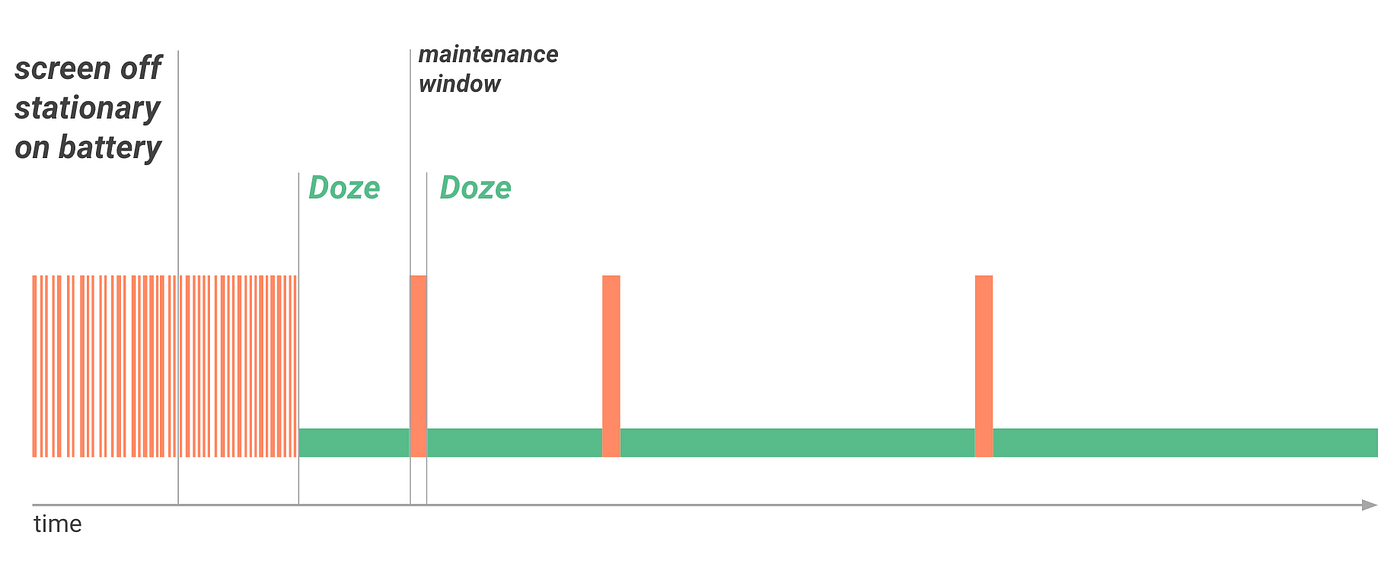
App Standby allows the system to determine that an app is idle when the user is not actively using it. The system makes this determination when the user does not touch the app for a certain period of time and none of the following conditions applies:
- The app has a process in the foreground;
- The app has a notification that user can see in locked screen and in notification tray;
- The user explicitly launches the app.
When the user plugs the device into a power supply, the system releases apps from the standby state, allowing them to freely access the network and to execute any pending jobs and syncs. If the device is idle for long periods of time, the system allows idle apps network access around once a day.
Battery optimization
Battery optimization allows you to put your app into the whitelist. By default, it is turned off. Apps available in the whitelist are partially exempt from Doze and App Standby optimizations. This doesn't mean they have full access to and could perform tasks during the doze mode. An app that is whitelisted can use the network and hold partial wake locks during Doze and App Standby. However, other restrictions like jobs being differed, standard alarm triggers are still imposed.

The table in the screenshot above highlights the acceptable use cases for requesting or being on the Battery Optimizations exceptions whitelist. By the way, here is the important note, you will not be able to publish your app in Google Play store with having this permission in your app.
Code for requesting battery optimization permission
By the way, it could be very useful in moments of testing or creating local apps, that will not be published, so we will provide a code for turning on this permission. Add the following lines in your manifest file:
          <uses-permission
android:name="android.permission.REQUEST_IGNORE_BATTERY_OPTIMIZATIONS"/>
And add this code in your code, so it will move you directly to the settings, where you can move your app to the whitelist:
Or you can manually configure the whitelist in Settings > Battery > Battery Optimization.
Conclusion
No matter how promising the name of this feature may sound, it still does not turn out to be so useful in development, because it does not help you completely defeat the doze mode, and also cannot be used if you intend to put your application in the Google Play store. Therefore, it remains to rely on other tools or try to avoid doing something in the background. It's also worth paying attention to the tools that Google itself offers, for example, FCM.
We hope the article will be useful to you and you will understand that this feature is not as useful and usable as you might think. Feel free to ask your questions!
What Happens To My App In Doze Mode
Source: https://proandroiddev.com/android-battery-optimization-for-avoiding-doze-mode-and-app-standby-83cd379ee75b
Posted by: sabalagole1969.blogspot.com
0 Response to "What Happens To My App In Doze Mode"
Post a Comment